Use Hotspot Shield in Vista 64-bit (no software required)
Update 18/03/2009: Sorry everyone, it looks like this is not currently working. The entire Hotspot Shield for iPhone service seems to be down as it's not working on my iPod Touch right now either. Let's hope it's temporary.
Hotspot Shield is software that encrypts your internet traffic between your PC and their servers, purportedly to avoid snooping at open WiFi hotspots (a purpose for which it works great). My main use of it (being outside the US) is to access the multitude of US only sites and services (Hulu, Lala and Pandora to name only a few).
Unfortunately it comes bundled with a TUN/TAP driver that is not 64-bit compatible - it doesn't even fail gracefully during installation, rather you end up with this error:

The application continues to install and even prompts to run at the end, but then immediately dies.
But there's another way. Hotspot Shield offers a service for the iPhone (and iPod Touch) which uses L2TP to create the VPN connection. You can use the same connection within Windows Vista (and any other operating system which supports L2TP) to use the same service. Here's how I did it:
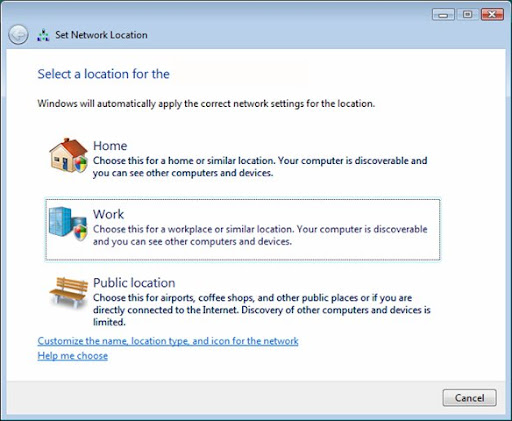
- Create a new VPN connection (Start > Network > Network and Sharing Center > Set up a connection or network > Connect to a workplace > Use my Internet Connection (VPN)).
- Now visit http://www.hotspotshield.com/clientless/iphone/get_started.php - this is where you will get the required connection information.
- Click the giant Get Account ID button.
- The instructions given are obviously for the iPhone, but there's some important information we need:
Server: 64.55.144.10
Account: abc123 (I'm pretending abc123 is mine - yours will be unique)
Password: abc123 (ditto as above)
Secret: password
- Enter 64.55.144.10 for the Internet Address. For Destination Name, put whatever you want. I put HotspotShield. Be sure that Don't connect now; just set it up so I can connect later is ticked, because we need to change some advanced settings later.

- For username and password, enter what you were given by the Hotspot Shield website. Tick Remember this password. You don't need anything for Domain. Close the window when you finish.
- Now go to Start > Connect To. Right click on the connection you created and choose Properties.
- On the Networking tab, change Type of VPN to L2TP IPsec VPN and then click IPsec Settings.

- Choose the Use preshared key for authentication option and type in password for the Key (this is what the iPhone calls Secret).

That's it! You can now connect to HotSpot Shield through the Connect To option on the Start menu - that's even easier than using the software from my point of view. I guess it would be possible to install a 64-bit TUN/TAP driver but I haven't investigated whether one exists for Vista because this way just seems so clean.
Just remember to disconnect after you're finished!
Update:
Some have found their problems resolved by following the instructions carefully or fiddling with their settings.
Thanks also to the anonymous commenter who pointed out that these instructions will help those who run Windows XP 64 bit.
Update 2: Some commenters are worried about a redirect to rss2search.com, some even worried they are infected with malware. First note that there's no way I could infect you with malware - I haven't offered you anything to install and you are only using settings from Hotspot Shied's iPhone page. In case you haven't noticed, Hotspot Shield is funded by advertising and the rss2search.com page is part of this - you would be getting the same thing if you installed the Hotspot Shield software itself on a supported operating system.
Update 3:
P.S. Hi AnchorFree!