Showing posts with label windows. Show all posts

26 April 2009

Install Windows on Macbook Air with no external drive

Normally to install Windows on a Macbook Air through Boot Camp, you require an external SuperDrive. What a pain - I'm not prepared to pay for something I won't use for any other purpose. Of course I could (and have) installed Windows in a VM but it just isn't as speedy; sometimes I need good performance for my Windows apps.

The "normal" way to install apps on a Macbook Air is to use downloaded versions or Remote Disc. Neither will work for your Windows install. However after much experimentation I have come with a solution that will work.

Disclaimer: The solution I am proposing requires you to be both technically literate and careful. You could completely destroy your data if you are not careful so create full backups of everything before you begin. I'm not responsible for anything you do. Additionally, you shouldn't assume that I've done anything the "right" way - this process was created through trial and error, not an expert knowledge of the software or processes in question.


Here's what you need:

  • A Macbook Air with plenty of free hard drive space.
  • A full, legal copy of Windows Vista or Windows 7 (I haven't tried this with XP).
  • Parallels Desktop (A trial version should be enough).
  • A USB drive of any size.
  • Another computer with a DVD drive and Remote Disc software.
  • Your Macbook Air OS X install disc.
To clarify the above, I believe this is more likely to be a success with Vista or 7 because of their image based install process - a generic image is copied to the hard drive and then customised for your system. This process might work with Windows XP but I haven't tried it. If you do feel adventurous enough to try it then let me know how you got on. Additionally, I'll note that although Apple states that only 32-bit operating systems are supported, I have used 64-bit Windows 7 with no problems.

Let's begin.

If you don't have it already, you should download and install Parallels now. If you already have Parallels, be sure to get the latest Parallels updates. Earlier releases don't work with Windows 7, for example.

Now we need to get our Windows installation files onto the Mac. Use another computer to create an ISO disc image of your Windows DVD (unless your Windows is an ISO already). I like ImgBurn (a Windows app) for these purposes. Copy the ISO to your Mac in your favourite way (network, usb drive etc).

Now it's time to launch the Boot Camp Assistant. Follow the process as normal, right up to the point where it's time to start the Windows installation.

At this stage, just quit the installer (⌘+Q).

Hint: Check now that your Boot Camp partition has not decided to mount itself, otherwise Parallels sometimes gets upset. You can unmount it from Disk Utility if needed.
Start up Parallels and create a new virtual machine.
Skip Detection and select your version of Windows. Be sure to choose the Custom option.
 
The defaults are fine until you get to the Hard Disk Options.
As tempting as it is to select Boot Camp Partition, don't do that. Instead, choose No hard disk. Sometimes Parallels seems to set things up wrong when you choose the Boot Camp Partition option here.
Open the configuration for the virtual machine and configure the CD/DVD-ROM. Choose the Windows ISO file you copied over earlier.
 
Click the + button and add a Hard Disk. Now you can choose the Boot Camp Partition option.
 
Last thing to check - choose the Boot Order option and make sure the CD/DVD-ROM is top of the list.
Time to begin! Start your virtual machine.
Hint: Parallels can be really fussy about Boot Camp partitions sometimes. If you get an error when you try to save your configuration or start the VM, a fix that often works is to close Parallels and then run this command in your terminal: mv "/Library/Parallels/Parallels Service.app/Contents/MacOS/BootcampConfigurator" "/Library/Parallels/Parallels Service.app/Contents/MacOS/BootcampConfigurator.old"
Good ol' Windows installer.
Make sure you choose your BOOTCAMP partition. You might find you need to click the Drive Options link then Format your BOOTCAMP partition, depending on the version of Windows your are installing.
Follow the typical installation process but keep your eyes on it. You want it to keep on installing until the first time it tries to reboot. Just as it shuts itself down to reboot, stop the VM!
Quit Parallels.

Here comes the tough part. If you were to reboot now and try to force your Mac to boot Windows it won't work. A typical PC's hard disk has code right at the beginning of the disk which tells it where to find crucial operating system files - the MBR. Windows has gone ahead and installed the MBR but it's installed in its VM, not to the real hard disk. We have to copy this MBR to the real hard disk and at the same time be careful not to mess up the Mac install.

First we need to find the VM's MBR. To do this, locate your Windows VM on your Mac hard drive. Typically this will be in your Documents/Parallels folder. To get to the MBR, right click your VM and choose  Show package contents. Repeat this for your VM hard drive which will share the name of your real hard drive (mine is called SAMSUNG HS082HB.hdd). The PhysicalMbr.hds file is what we need. Copy this to your USB drive.

Now start up Terminal.

We'll use Fdisk to view and modify our MBR as necessary. Let's start by running sudo fdisk -e /dev/disk0. Enter your password.

Type print followed by pressing return to view your current MBR information.

It's important now to note this information, just in case. Note specifically the id column - notice how there's an EE? That's for the GUID Partition Table the Mac uses. You might want to read up about GPT. The takeaway point is that the first sector of the drive is reserved for the MBR, even though we've also got a GPT partition. Note that the Boot Camp partition is listed as Fat-32 despite the fact that I used NTFS on my Windows partition. This is because the real MBR has not been updated with the new partition information.

Type exit and return.

Now we're going to write the new MBR. This part is very dangerous if done incorrectly. Additionally, Mac OS does not allow you to write a new MBR from within the OS. If you try, you will find that access is denied (even for the super user). Instead, we need to boot the Mac OS X Installer and write the MBR from there. So reboot your Mac and use Remote Disc to start the Mac OS X Installer

Hint: Sorry, you can't use your wired ethernet here, only wireless. This is because we have to keep our one USB port free for the USB flash drive. A hub might work if you have one though.


When the OS X installer is ready to go, do not proceed with it. Instead, go to the Utilities menu and open Disk Utility. Click each of your hard drive's partition and unmount each.

Now we will open the Terminal. Make sure your USB drive is plugged in.


Hint: In case you don't know, you must press return after every command in the terminal.

Navigate to your flash drive. To do this, first type

cd /Volumes

Type ls and identify which is your flash drive. Type
cd

The first thing to do is back up your old MBR.

Be very careful entering these commands.
dd if=/dev/disk0 of=backup.mbr bs=512 count=1

This will back up the MBR to a file called backup.mbr on your USB drive.

Now we replace the physical MBR with the one copied from the VM.
dd if=PhysicalMbr.hds of=/dev/disk0 bs=512 count=1


This assumes you didn't rename the VM MBR when you copied it to your USB drive.


Hint: If something bad happens and you need to restore your MBR, type the same command as directly above, but substitute PhysicalMbr.hds for backup.mbr.

Now that we've replace the MBR we need to check it looks ok. Type

fdisk -e /dev/disk0

Type print to view your MBR. The most important thing to check which Windows may have stuffed up is the id of each partition. Your first partition must have an id of EE, your Mac Partition must have an id of AF. If either of these is wrong you must change them (don't worry, this doesn't modify the data on these partitions). For each that is wrong, type setpid n where n is the number of the partition whose id you are changing. Then, when prompted, type the correct id.

When you are done with fdisk, type write and then exit.

You can quit the Mac OS X Installer now.

As the computer boots, just after you hear the chime, hold down the option key on the keyboard. Windows should now be one of the options in your boot menu, so choose it.


Windows should start and continue with installation.


When Windows restarts, remember that you will have to hold down the option key again and choose Windows.

And finally...


Hello Windows.

01 March 2009

Drivers reinstalling after a cold boot

Recently I've been using a PC with Windows 7 on it, mainly to try it out. I'm, in general, very happy with the operating system itself but have been having an issue which I only recently identified. Occasionally after the system was booted I would find that the system was reinstalling a whole lot of device drivers.

This caused particular problems with the sound driver as Windows would install the Microsoft driver rather than the Realtek driver, and the Microsoft driver does not provide any output devices. This would mean I would have to reintall the Realtek driver before I was able to use sound again.

I finally noticed under what conditions this occured - after a cold boot. If I powered the machine down fully and then started it up again, the issue was triggered. It's actually quite rare that I do this on any of my computers; normally I would simply send them to sleep.

Some research shows that the issue is a faulty VIA chipset (see this forum thread for details, but basically the chipset appears to randomise device IDs on boot), an issue which motherboard manufacturers can fix through a BIOS update. Almost every manufacturer mentioned in the thread has issued an update with the exception of ASUS. This is annoying because the issue I am having is on an ASUS motherboard.

I've had a number of problems with ASUS in the past. For example, a laptop with a hinge that broke much too quickly and a great deal of difficulty obtaining drivers for their products. Additionally, their drivers and crapware installed on their PCs tend to be, well, crap.

This is the issue that has pushed me over the top. I will never buy another ASUS product.

Interestingly, I had previously had Linux installed on the affected PC and had a similar problem of devices randomly stopping working in similar situations. I had put it down to some eccentricity of the way Linux operates but had been able to fix it using udev (in a nutshell I was able to provide some unique identifiers for my devices and tell it to load certain drivers).

Now I'm going to have to buy a new motherboard I guess...

17 February 2009

Hi AnchorFree!

According to my Analytics stats, I've recently received some visits from AnchorFree, the makers of Hotspot Shield, probably checking the source of some of the traffic to their iPhone page (i.e. my post about using Hotspot Shield in 64-bit Windows).

Great! Hopefully this will let them think about compatibility with 64-bit operating systems. There are difficulties around driver signing issues in 64-bit versions, however, so I don't expect anything in the short term. Meanwhile, I don't expect them to be concerned about people using my method of connecting to Hotspot Shield as they still show their advertisements.

19 December 2008

Use Hotspot Shield in Vista 64-bit (no software required)

Update 18/03/2009: Sorry everyone, it looks like this is not currently working. The entire Hotspot Shield for iPhone service seems to be down as it's not working on my iPod Touch right now either. Let's hope it's temporary.

Hotspot Shield is software that encrypts your internet traffic between your PC and their servers, purportedly to avoid snooping at open WiFi hotspots (a purpose for which it works great). My main use of it (being outside the US) is to access the multitude of US only sites and services (Hulu, Lala and Pandora to name only a few).

Unfortunately it comes bundled with a TUN/TAP driver that is not 64-bit compatible - it doesn't even fail gracefully during installation, rather you end up with this error:

An error occured installing the TAP VPN driver.
The application continues to install and even prompts to run at the end, but then immediately dies.
But there's another way. Hotspot Shield offers a service for the iPhone (and iPod Touch) which uses L2TP to create the VPN connection. You can use the same connection within Windows Vista (and any other operating system which supports L2TP) to use the same service. Here's how I did it:
  • Create a new VPN connection (Start > Network > Network and Sharing Center > Set up a connection or network > Connect to a workplace > Use my Internet Connection (VPN)).
  • Click the giant Get Account ID button.
  • The instructions given are obviously for the iPhone, but there's some important information we need:
Server: 64.55.144.10
Account: abc123 (I'm pretending abc123 is mine - yours will be unique)
Password: abc123 (ditto as above)
Secret: password
  • Enter 64.55.144.10 for the Internet Address. For Destination Name, put whatever you want. I put HotspotShield. Be sure that Don't connect now; just set it up so I can connect later is ticked, because we need to change some advanced settings later.
  • For username and password, enter what you were given by the Hotspot Shield website. Tick Remember this password. You don't need anything for Domain. Close the window when you finish.
  • Now go to Start > Connect To. Right click on the connection you created and choose Properties.
  • On the Networking tab, change Type of VPN to L2TP IPsec VPN and then click IPsec Settings.
  • Choose the Use preshared key for authentication option and type in password for the Key (this is what the iPhone calls Secret).

That's it! You can now connect to HotSpot Shield through the Connect To option on the Start menu - that's even easier than using the software from my point of view. I guess it would be possible to install a 64-bit TUN/TAP driver but I haven't investigated whether one exists for Vista because this way just seems so clean.

Just remember to disconnect after you're finished!
Update: Some folks seem to be having trouble connecting, or with keeping their connection to their ISP. As I haven't experienced such issues myself, it's not something I can help you with - but maybe other commenters can! Thanks to an anonymous commenter who pointed out a possible fix for those who find they lose their connection upon connecting to Hotspot Shield - try the instructions at this Yahoo! Answer post. If it works for you, let everyone know here by leaving a comment. 
Some have found their problems resolved by following the instructions carefully or fiddling with their settings.
Thanks also to the anonymous commenter who pointed out that these instructions will help those who run Windows XP 64 bit.

Update 2: Some commenters are worried about a redirect to rss2search.com, some even worried they are infected with malware. First note that there's no way I could infect you with malware - I haven't offered you anything to install and you are only using settings from Hotspot Shied's iPhone page. In case you haven't noticed, Hotspot Shield is funded by advertising and the rss2search.com page is part of this - you would be getting the same thing if you installed the Hotspot Shield software itself on a supported operating system.

Update 3: Bad news right now I'm afraid - Hotspot Shield's site appears to be returning an error when an Account ID is requested. Nothing I can do about that obviously - let's hope that it's temporary and they fix it soon! Ok, it's working again.


P.S. Hi AnchorFree!

24 November 2008

Modifying multiple motion paths in PowerPoint

or Why having human readable file formats is a Good Thing.


Recently I was creating a PowerPoint presentation to demonstrate a web site I had been developing. As I've discovered over the years, it's a wise thing to use PowerPoint, or rather screenshots of some sort, because it minimises the chance of something crashing or doing something equally as nasty.


What I wanted PowerPoint to do was to scroll everything up, like scrolling a page on a website. So I selected everything and then added a motion path. What I ended up with is something like this:


Each slide element has its own motion path. What I wanted was for each motion path to be exactly the same length, so that the scroll effect would look real - and the default length was not long enough. I tried shift-selecting all the paths and then extending each one by one but it didn't work.
So naturally, being who I am, I decided to try playing with the PresentationML (or "pptx" if you like) file format to see if there was anything I could do there. I started by saving the presentation and renaming it to have a .zip extension and then extracted it to see what I could find.

Basically I looked around the folder structure, trying to find some XML that might be describing the motion paths - and I found it. Inside the ppt\slides folder there are a number of XML files, each of which describes a slide in the presentation. I opened up my slide and looked around.

Here's something interesting:
   origin="layout"
   path="M 0 0  L 0 -0.33333  E"
   pathEditMode="relative"
   ptsTypes="">
This was present a number of times, and seems to be relatively self explanotory. It would make sense that -0.33333 would indicate the path was to go up (negative) by 0.33333 (whatever that represents). So I did a find replace for the path, replacing -0.33333 with -0.5 and re-zipped up the pptx contents. Sure enough, I find that all of my motion paths have grown in length and for me, -0.5 happened to be just right:


Just goes to show, human readable file formats can work wonders. Maybe there was a better way to do it within the UI, I don't know. But really, XML is Fun.

30 June 2008

Automatically switching on the firewall by location on Mac OS X

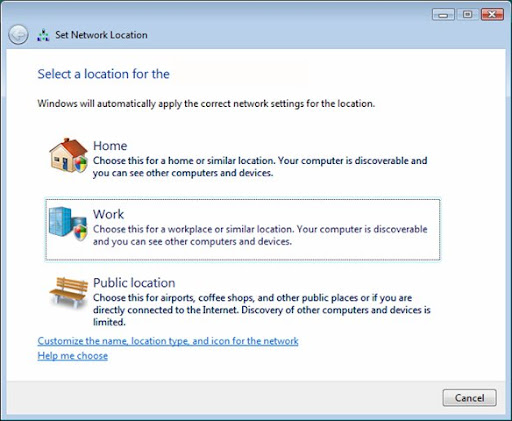
There is something that Windows Vista actually does rather well. When you connect to a network to which you have not previously connected, Vista will prompt you to say whether it is Home, Work or Public. Naturally when you connect to some sort of unencrypted network at a Cafe, University or wherever you are going to want to select Public - basically this puts the firewall up to full strength to stop services like file and printer sharing from telling the world what it is you have on your laptop. (I'm simplifying things here - if you unblock services while Public for example you could still be opening yourself to a world of pain because it will be unblocked for all public places).

I assume people are mostly still using XP because it seems no matter where I go in public (well maybe not everywhere) there's someone who has neglected to lock down their system, even to the extent that they have write access open to their OS / data partition.

Mac OS X doesn't seem to have this feature at all. Yes, it has network locations but they don't cover the firewall, nor can they be set to automatically switch. But there is a way.

First, we need to do how to programmatically change the network settings. The answer comes from (the really rather useful) macosxhints.com.

sudo defaults write /Library/Preferences/com.apple.alf globalstate -int 1
The last value represents the state of the firewall, where:
  • 0 = off
  • 1 = on for specific services
  • 2 = on for essential services
Note that actually the 'sudo' isn't required for this if you have an administrator account. So I created two very simple shell scripts based on this command, one which turns on the firewall and one which turns it off.

The second part of this is the great MarcoPolo. In a nutshell, MarcoPolo can automatically do whatever you want whenever you want based on various physical attributes like the Wifi access points it can see, bluetooth devices and even ambient light (among other things). Unfortunately it hasn't been properly updated for Leopard, so it can't switch the firewall itself - but it can be set to run shell scripts.

So this is what I have going. When I'm at home, MarcoPolo automatically sees my home WiFi and switches the firewall into a low paranoia state (so I can access my files etc). When I leave home, MarcoPolo battens down the hatches to prepare me from those people interested in my SSH, my files or my Apache server.

It's a great thing really - but it should be easier. Here's hoping Apple considers some sort of Vista style automatic switching at some stage.

22 March 2008

Using Unsion to sync iTunes


Update: I accidentally used forward slashes instead of back slashes for the backup dir, preventing the iTunes Library file from being synchonised. I did warn you!

I recently purchased a new Mac laptop to replace my rather aging Ubuntu laptop. Ubuntu's a great operating system but of course the Mac is often considered the best of both worlds. It's got the Unix and (somewhat) open source foundations but it's packaged into a great looking and widely supported interface.

Part of the advantage of this is that many of the most popular software applications are available natively. iTunes, for example, is the app I have been using to manage my music on my Windows machine for years now. Everyone knows iTunes (love it or hate it) but generally it's a great app for managing playlists etc. It sort of works on Ubuntu through Wine but now that I've got the Mac it's native - the same app using the same folder structure on two different computers running two different operating systems.

The obvious next question is why can't these two be in sync? What a pain to have to manage playlists on two separate computers and have to watch as my play counts get further and further apart and podcasts get infinitely downloaded again and again. I've been evaluating solutions to get this working. PowerFolder is a free app that synchronises stuff but it's java and only is really integrated into Windows (by the way even though it's open source they seem to have implemented a stupid 3 folder / 10 GB limit. What? Someone fork that sucker!). At the proprietary end of the spectrum we've got SugarSync. This is a very nice sounding service (which I haven't tried yet - it's brand new) and it has the advantage of storing your stuff online too. But it costs quite a bit, especially for the quantity of stuff I want to sync.

So in the end it's Unix to the rescue! Unison is a tool born in the Unix world that does one thing and does it well - sync! Unison can be used directly on the command line or by creating so called 'profile' files which contain all the information. Here's the profile I've created for iTunes. You only need to create it on one end.


# Synchronise iTunes library
# roots
root = D:/My Music/iTunes
root = ssh://192.168.0.30/Music/iTunes

#Ignore funny mac files
ignore = Name .DS_Store
ignore = Name ._*

# Keep backups of the iTunes library (itl) file
backuplocation = central
backupdir = D:\My Music\iTunes\Library Backup
backup = Name *.itl
backupprefix = $VERSION.
backupsuffix =
maxbackups = 20

# ask no questions
auto = true
batch = true

# favour newer files
times = true
force = newer

# there are a lot of files here so we need it quick
fastcheck = true


I saved this as C:\Documents and Settings\\.unison\itunes.prf and I can run it from my Windows pc by running 'unison itunes'.

Warning! Warning!
So far this seems to work. But I still need to test it. I wouldn't recommend running this yourself until either I've tested it or you've tested it. You have been warned.

Let's step through from the beginning.
We want to synchronise the iTunes music folder on the Windows PC at D:/My Music/iTunes/Library Backup (this is probably different for you. Think C:/Documents and Settings//My Documents/My Music/iTunes/Library Backup). On the mac (which has a static IP of 192.168.0.30 we want to synchonise to ~/Music/iTunes.
We want to ignore those files the Mac likes to store.
We want to keep backups of the itl iTunes Library file - the delicate file that stores everything about your library. I'm going to keep 20 backups because I don't want to lose this. Consider having other backups of your library as well through an external drive or something like Mozy.
We want Unison to run without bothering us with questions.
We want newer versions of files to replace old automatically.
And we want Unsion to compare files by looking at their modified dates. Doing checksums would take a *long* time with so many files. After comparing times and finding a difference, Unison checksums first anyway to be safe.

There are issues though.
- We need to have SSH successfully set up so the PC can talk to the Mac.
- Perhaps we should make sure iTunes is closed at both ends before doing anything.
- It would be good to have an easy way to initiate the sync at either end.
- Automatic sync every few hours or so would be good too.

I'm going to try to work through all of these as I get the time. Stay tuned.

21 February 2008

Mythbox: Software


I remember when I initially considered building a media PC, I had thought that I would base it on Mediaportal. Mediaportal runs on Windows and does pretty much all that you'd want a media center application to do. The only problem with it is that it crashes like hell for me there - I don't want to take the risk for the main TV.

GB-PVR, also for Windows is another very similar, though mush lighter weight contender. I strongly considered GB-PVR, partly for its ability to run on Windows 2000. Plus, it's fairly easy to set up and stable.

Windows Media Center is the other oft-used option. However the limitations here are artificial and infuriating. For example, the way Media Center restricts you to two tuners or that it doesn't support DVB-S natively, nor does it support any HD options outside of the US. This somehow seems unacceptable for such a product. On the plus side, Media Center has probably the best user interface of the bunch.

This leaves MythTV, the relatively stable (if impossibly difficult to configure) usually Linux based DVR software. MythTV sure has the features and it has the advantage of being itself completely free along with the operating system on which it usually runs. I chose mythbuntu as my flavour of choice. Given that cost is my primary driver for this mythbox, I felt that MythTV presented the only real option (all others discussed would have required a Windows license - and product activation on a DVR. That sure doesn't feel right.)

The pros and cons:

MediaPortal

+ Lots of features
+ Itself free and open source
- Requires a Windows license
- A little crash happy

GB-PVR

+ Stable and snappy
+ Nice and lightweight
+ Able to run on Windows 2000
- Requires a Windows license

Windows Media Center

+ Nice, intuitive user interface
+ Relatively easy to set up
+ Media extenders available
- Requires a Windows license, Windows Vista to get newest version
- Stupid tuner number limitations
- Lack of DVB compatibility

MythTV

+ Features galore
+ Highly configurable
+ Relatively stable
+ Completely free
+ Media extenders easy to build or buy
- Hellishly difficult to configure
- Notoriously bad support and documentation

MythTV's definitely got what I need, I'm just hoping I'm up to the set-up task.

12 February 2008

Vista Sucks: Where's the frickin back button?


Gah! What were they thinking? Hey Microsoft listen to me and repeat - consistency, consistency, consistency. There, how does that feel? Now put it into practice. What you should not do is have a text-based Next button in the bottom right of a wizard dialogue and a graphical button in the top left.

Bad, Microsoft, Bad! Now hang your heads in shame and go work on that next version.

20 September 2007

Batch converting Office 2007 documents to 2003 format


I had someone ask me today for a way to convert multiple docx files to plain old doc. Naturally I Googled for a solution (or should that be performed a web search using the Google™ search engine?) but I couldn't find one that I liked or was appropriate for someone a little less technically inclined. So I went ahead and rolled my own.

The result is a VBA macro enabled Word 2007 document. I have no idea if it works in any other versions of Word apart from the 2007 version although it might if the Compatibility Pack is installed. I do know that it probably won't work on anything apart from Windows because it expects folder names to end in a trailing backslash.

I should probably disclaim that I definitely am not responsible if this somehow messes something up. Use at your own risk! You can use this for whatever you like as long as you don't try to make money from it (not that you'd want to for this thing).

I should probably say that I hacked this together in a few minutes today. I've never used VBA before but take a look at the code if you want. You'll need to enable macros for this thing to work at all.

Download here!

19 August 2007

This is a joke, right?


I started getting a prompt when I booted saying I had to activate Windows again because I changed the hardware. Of course we all know that the activation system Microsoft uses is ridiculous and treats us all as criminals but my problem is what brought it on.

"Changed hardware!", I hear you cry, "You must have really done something drastic to your system!"

You'd think that, but no. What did I change then? The frickin power supply. That's right the power supply and nothing else. I really don't think that changing the power supply is something Windows could even detect so that leads me to the thought that this is probably a bug. A bug that has the ability to piss me off fully and however many other people have encountered it.

It creates more food for thought too. What if the year was 2015 and Microsoft was no longer activating XP. Or they may not even exist (come on, it's possible!). Activation is another dirty form of DRM which can only hurt consumers. And today that consumer is me.

07 April 2007

What's the best cross-platform filesystem?

Good question. It's something that I've been thinking about and something that for a while annoyed the hell out of me. Realistically there are three operating systems that someone (or at least a tech-geek) might have on their system - Windows, Linux (of some variety) and Mac OS X (apple-labelled or otherwise) and the ideal filesystem is one that works properly on all three.

By doing this it makes it much easier to realistically use your music, documents etc properly and successfully on all three. As an example, I might have 3 primary partitions, - one for each of the operating systems - and then a logical partition for documents (plus another for linux swap). Of course this will work equally well with another drive acting as the documents repository (something that I'm planning to do shortly as a multitude of home videos, photos, music and podcasts threaten to completely fill my current drive).

So let's survey the contenders.

FAT32
Advantages:

  • Works natively and perfectly in all three operating systems.
Disadvantages:
  • No journalling.
  • Relatively low maximum partition size (2 Terabytes - not attainable yet but will be).
  • Inefficient at large partition sizes.
  • Maximum file size limited at 4GB.
NTFS
Advantages:

  • Works natively and perfectly in Windows.
  • Other operating systems support read support natively.
  • Robust and journalled.
  • Very high limits on maximum partition size
  • Very high limits on maximum file size.
  • Generally efficient at large partition sizes.
Disadvantages:
  • Requires third party software to allow for write support on Linux and Mac OS X.
  • Slower on Linux and Mac OS X because of the use of FUSE.
  • Proprietary filesystem patented, and at the whim of, Microsoft.
Ext3
Advantages:

  • Works natively and perfectly on Linux.
  • Generally fast, journalled filesystem.
  • High file and partition size limits.
Disadvantages:
  • Requires third party software to allow for any access under Windows or Mac OS X.
  • Third party software tends only to support ext2 resulting in extra file system checks (and these are slow).
HFS+
Advantages:
  • Works natively and perfectly on Mac OS X.
  • Works natively and perfectly on Linux (without journalling)
  • Generally fast, journalled file system (but journalling must be disabled for Linux)
  • High file and partition size limit
Disadvantages:
  • Requires third party software to allow for any access under Windows.
  • Linux access requires disabling journalling.
  • Free HFSExplorer is not integrated into the Windows explorer.
  • Commercial MacDrive (with full Windows explorer integration) is not free of charge.

One important point to note is that until not so long ago NTFS write access was just impossible outside of Windows but thanks to the fine NTFS-3G project that limitation is now not an issue.

So what's the verdict? Well, only last year I couldn't possibly imagine myself saying this but for me the answer is NTFS. Pretty much all the NTFS features of importance are supported by the aforementioned NTFS-3G project while ext3 features only limited support due to only ext2 support with most options on the other operating systems. Needless to say, FAT32 is something I ruled out because I constantly hit upon the 4GB limit - though I must add that for the longest time (i.e. before NTFS-3G) this was the filesystem of choice for me. HFS+ is ruled out due to its commericial software requirement on Windows (although if you are comfortable using it without Explorer integration or paying for the software, then it may be an option for you, especially if OS X is your primary OS).

As mentioned Windows of course features native support for NTFS (how could it not!) but for Linux and Mac OS X a little work will be required. The great thing about NTFS-3G and linux of course is that in the future it will probably find its way into the kernel, or if not then at least into many distros. This hopefully will mean that no extra work is required! [Update: As of Ubuntu 7.10, NTFS write support is enabled by default.]

For now though there is stuff to be done but it's not hard. I followed the instructions over at the Ubuntu Forums. Mac OS X installation instructions may be found at Mac OS X NTFS-3G's unofficial homepage and is made possible by the fortunate and timely release of Google's MacFUSE project.

The end result? Beautiful cross-platform bliss as I can read, write and modify to my heart's content whichever OS I happened to have booted. The one problem with FUSE hinted at earlier is because it's a user-space system it runs a little slower than a natively supported file system. However given that the solution is (IMHO) so much better than FAT32 and will probably get better in the future I think it's just fine.

Happy filesysteming!

P.S. If you read this and find something grossly wrong then let me know.

Update: Thanks to commenter Derek for suggesting HFS - I have added my thoughts to this post.

06 April 2007

Ubuntu - it's the little things that count

I'm a big fan of good usability design. This is something that I think the Ubuntu guys do really well - they take a step back and look at things from the average point of view and try to come up with ways to make things better. Take the Slick Boot specification that (sadly) won't be making its way into Feisty but will come around eventually I'm sure. An example of the user perspective from the full specification page:

Matthew's monitor takes a couple of seconds to switch between different
modes. The multiple mode switches in the current boot sequence make him
nervous.
Sadly there's one little thing that's been annoying me recently. My laptop has always been notoriously bad at sleeping no matter which operating system is having its go at it. Not to worry, I can just use hibernate instead and back when I used Windows this was fine. It works perfectly on Ubuntu too. But let me pretend for a second that I don't know what's going on here.
If you turn on a hibernated computer with Windows, here's what you might get:


It's a simple screen, sure but effective. It has text that tells the user what is happening. It has a progress bar.

Now let's compare that with what I see when I resume my laptop.


Hmmm. What's going on here? I've got a progress bar that's not moving at all. And I have an ugly white band across the screen that makes it seem as if something is broken. But no! Suddenly a flash occurs and my desktop is back.

Ubuntu did a great job with Usplash of making things look rosy to the average user. Usplash needs to be extended to hibernation too. Admittedly there is a specification that covers this. I just hope it gets implemented soon!